

Before you can assign a survey inspection, somebody has to decide three things: what is being inspected, which template should be used and who is going to do the work.
That sounds simple. It should be simple.
In practice, once you have a growing list of properties, templates and surveyors, you need a quick way to create the job, give the surveyor enough information to find it and keep track of what is happening without turning survey assignment into an administrative exercise of its own.
That’s what BrightChecker’s assignment process is designed to do.
The basic process is:
Property → Template → Surveyor
From there, BrightChecker handles the job through its different stages — from the initial assignment and job stub, through reassignment if plans change, to the point where a surveyor downloads the full inspection and takes it on.
Use the Survey Screen’s “Create Survey” command.
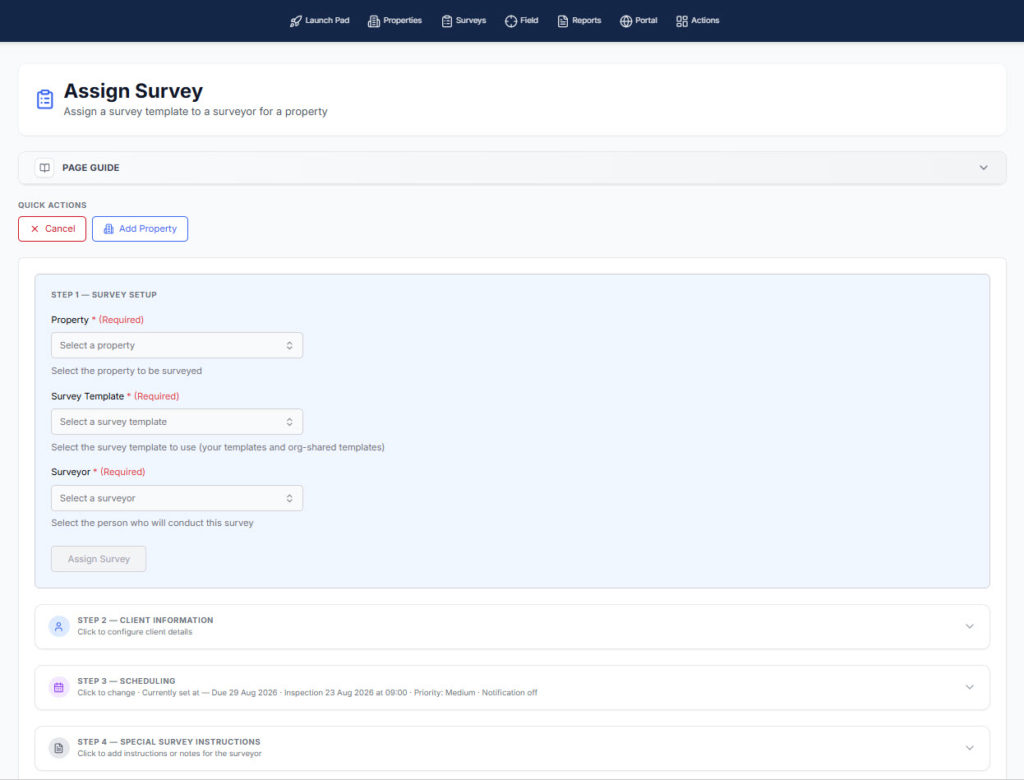
As a result the Assign Survey Screen opens.
Select a property.
The property selector uses a drop-down and searchable combo box, so you can start typing and narrow the list rather than scrolling through everything.
Pick the property and move on.
Choose the template
Next, choose the template that the inspection will use.
Again, you can search for the template rather than hunting through a long list.
Start typing, narrow the results and select the template you need.
The template determines what the surveyor will actually work through when they carry out the inspection.
Choose the surveyor
Then choose who is going to do the job.
If you have one or two surveyors, that’s straightforward.
If you have a larger team, the same searchable selector lets you narrow down the list and pick the right person.
That’s the basic assignment:
Property → Template → Surveyor
You can create the job very quickly without having to complete a long form.
Add the information that helps you manage the job
There are additional fields you can use when they’re useful. These are below the property, template and surveyor selections.
You can specify:
- Date
- Time
- Priority
- Instructions
But these aren’t mandatory.
If you simply need to get an inspection onto somebody’s device quickly, you don’t have to spend time completing information that isn’t necessary.
If you leave them blank, BrightChecker can use the defaults. For example, the job can be treated as medium priority and scheduled for 9:00 the following day.
These are scheduling details, not inspection content. They’re there to help your business organise the work and aren’t automatically printed on the final report.
A calendar view of surveys
BrightChecker provides a calendar view showing what’s happening, when it is happening and who is doing it.
You can filter the view by surveyor and change the scheduling when plans change.
That’s useful for the everyday realities of running an inspection business.
Someone is off sick.
A job moves.
A surveyor has to take somebody else’s work.
You need to see who is already committed at a particular time.
The calendar gives you that overview without confusing scheduling information with the actual inspection content.
The surveyor gets a job stub first
When you assign an inspection, BrightChecker doesn’t immediately download the entire survey onto the surveyor’s device.
Instead, the field side of the system receives a stub of the job.
It contains the basic information needed to identify and organise the work, such as:
- Property
- Date and time
- Priority
- Location
- Template
The surveyor can then see their assigned inspections in their jobs list.
Normally, these appear in date and time order, which is probably how most people will use the list.
There are filters as well, so you can find jobs by things such as how long they have been outstanding or their priority.
Being assigned doesn’t mean you’ve committed to the job
This is an important distinction.
A job appearing in a surveyor’s list doesn’t mean that person has downloaded the full inspection or committed to carrying it out.
Until they download it, the job can still be reassigned.
That can be done by the surveyor or by the office/admin side of the business, depending on how you operate.
Perhaps the surveyor is ill. Perhaps somebody else is already going to that property. Perhaps you’ve simply allocated the wrong person.
The job can be assigned to somebody else without having to rebuild the underlying property or template.
Reassignment updates the field device automatically
Suppose a job has been assigned to Surveyor A.
It’s sitting in their jobs list, but they haven’t downloaded the full inspection.
The office decides that Surveyor B should do it instead.
The administrator changes the assignment.
Surveyor A doesn’t have to remember to remove the job from their phone. The next time their device synchronises, BrightChecker sees that the job is no longer assigned to them and removes it from their jobs list.
At the same time, it appears in Surveyor B’s list.
So the assignment remains controlled centrally, while the field devices catch up automatically.
Downloading is the commitment point
There is a clear point where the situation changes.
The surveyor sees the job stub and decides:
I’m going to do this inspection.
They download the full detail.
That’s the commitment point.
BrightChecker downloads the sections, questions and other information required to carry out the inspection. The system now knows that this is no longer simply a job waiting in someone’s list: it is a job that the surveyor has actively taken up.
Before that point, the assignment remains flexible.
After it, BrightChecker treats the inspection as being actively in use.
One active inspection, one device
Once the survey has been downloaded and is in progress, BrightChecker knows which device is working on it.
If you then open the system on another device and try to start the same inspection, it will tell you that the survey is already in progress elsewhere.
It won’t allow you to start another version of the same job.
That’s deliberate.
You don’t want a surveyor completing half an inspection on a phone and then accidentally opening what appears to be the same inspection on a computer and creating two competing versions.
Once the inspection has been submitted, however, it can be reviewed from another device.
What if plans change after download?
Before the surveyor downloads the full inspection, reassignment is straightforward.
After download, the inspection is actively associated with that device.
If the job still needs to be carried out by someone else, the practical approach is to delete that active survey and create the replacement survey for the person who is going to do the work.
Creating a new survey is only a few keystrokes, so the important thing is that the state of the original inspection remains clear.
You’re not quietly moving an active survey between people and devices and risking two people working on different versions.
Why have a commitment point?
It would be easy to make every assignment permanently movable.
But that creates another problem.
Imagine a surveyor has downloaded the full inspection and is already travelling to the property.
If the inspection could simply be moved to another surveyor without accounting for the active device, you could end up with two people believing they were responsible for the same job.
The commitment point avoids that ambiguity.
Before download: the job is an assignment that can be moved.
After download: the surveyor has committed to carrying it out and the inspection is actively associated with that device.
It’s a simple rule, but it gives the workflow a clear state.
The point is to keep administration out of the way
Most of the time, assigning an inspection should be quick.
Pick the property, choose the template, select the surveyor and get the job moving.
If you need to add a time, date, priority or instructions, you can.
If you need to see the day’s work on a calendar, you can.
If someone becomes unavailable before they’ve downloaded their inspection, you can reassign it and the field device will update when it synchronises.
Then, when a surveyor downloads the inspection, BrightChecker knows that the job has moved from assigned to committed.
That gives the office the flexibility it needs while giving the surveyor a clear set of jobs to work through.
Assign the job. Keep it flexible until someone takes it on. Then keep one active version of the inspection.
Brightchecker is flexible by design
About the Author
