
Report
Property Inspection Reporting
BrightChecker turns completed property inspections into professional, consistent reports in PDF or interactive web format.
Create professional reports in minutes.
Start with a ready-made report layout, adapt it to your requirements, or build your own. Apply your branding, structure your sections and control exactly how your inspection information appears in the finished report.
Report layouts are linked to your inspection checklists, so the same reporting structure, branding and presentation can be reused every time that inspection is carried out.
Produce professional reports faster, without rebuilding the same report from scratch after every inspection. Built for property and other professional inspections, BrightChecker turns captured findings, photographs and inspection data into a consistent report ready to share with your client. Give clients clear, professional reports that are easy to review, whether you send an interactive web report or a polished PDF.
Make the reports completely your own. White-label the entire report with your company branding, logo, colours, fonts, graphics, covers, section pages, headers and other visual elements. Control what information appears in each section and how it is presented, so your reports look and feel like your business rather than someone else’s software.
PDF Property Inspection Reports
You can download a PDF Report or share a link to download the PDF.
What can the report contain?
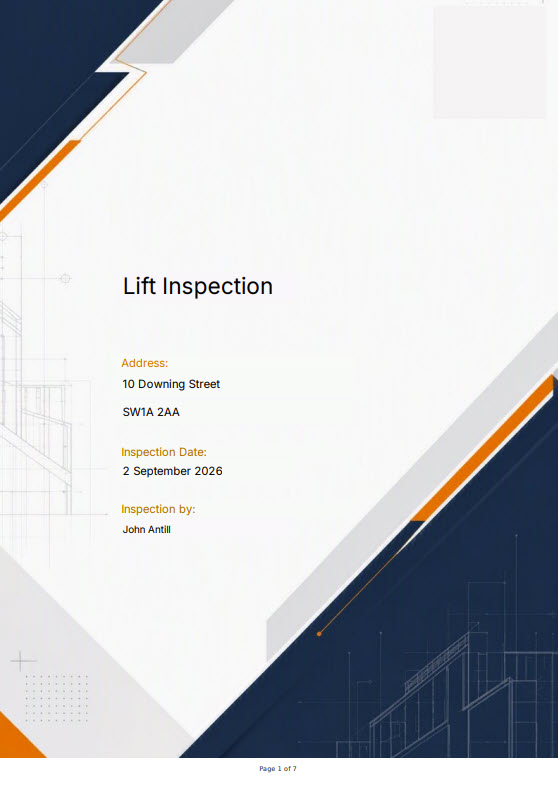
A branded front cover and back cover
- Company logo
- Report title
- Property name/address
- Inspection date
- Inspector
- Client details
- Cover photograph
- Your chosen colours/design
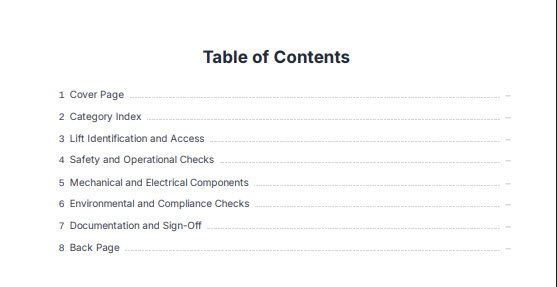
A Table of Contents Page
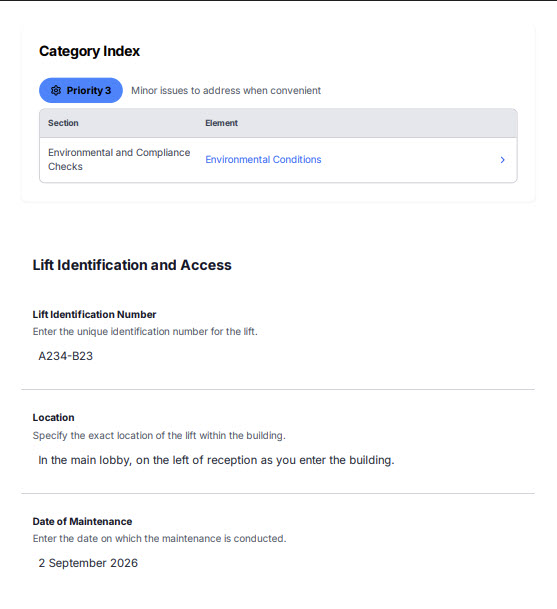
An Interactive Category Index
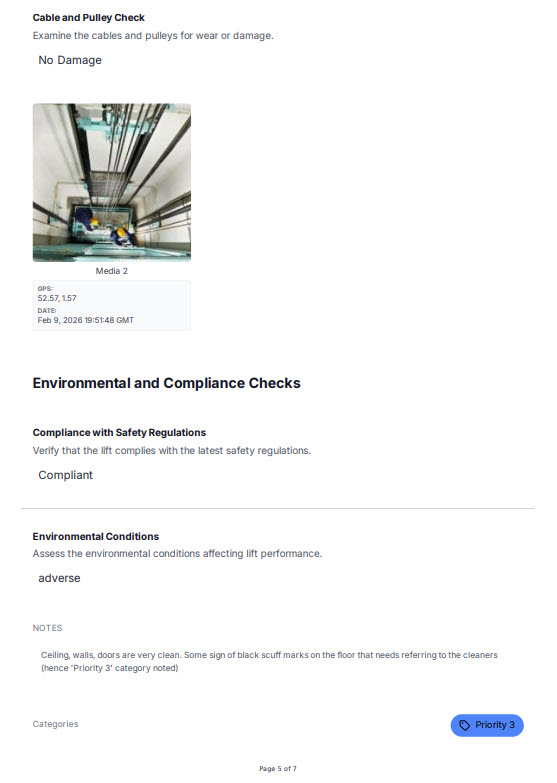
Include or exclude template sections in any order.
You can also include an AI-generated summary
The report does not have to follow the order in which the inspection was carried out. Information captured later in the inspection can, for example, be presented earlier in the finished report.
Interactive Web Inspection Reports
BrightChecker can also generate an interactive web report that can be viewed in a browser.
The web report presents the inspection information using the layout you have created and can include the selected inspection data, photographs, summaries, graphics and other content defined by the report layout.
The web report can be shared using its report link.
Customise Your Property Inspection Reports
The report layout supplied with a checklist is not locked.
BrightChecker’s Report Layout Builder gives you a graphical environment for adapting the layout to suit your business. You can change the structure, move content around, add or remove elements and control how the finished report looks.
You can adapt the supplied layout as much or as little as you want.
Build Custom Inspection Reports with the Report Builder
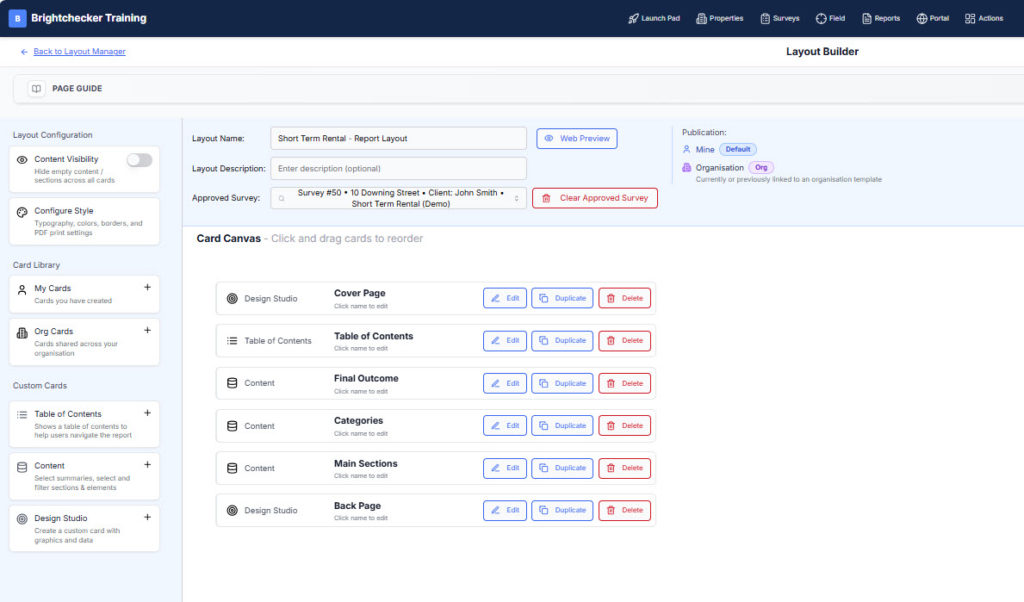
The Report Builder is a card-based editor. You select the cards you need, configure what each card displays or how it works, and then reorder them to create the report layout you want. See it in action in the video below:
Design and Brand Your Inspection Reports
Design Studio cards contain a full graphical drawing pad where you can click and drag to create and arrange the visual elements of your report. Move, resize, copy and duplicate objects, select multiple objects, group them together, align them, change their position and layering, zoom in and out while you work, and use undo whenever you need to step back. Add and position text, images, logos, shapes, lines, graphics and other page elements, giving you precise control over how each page is designed.
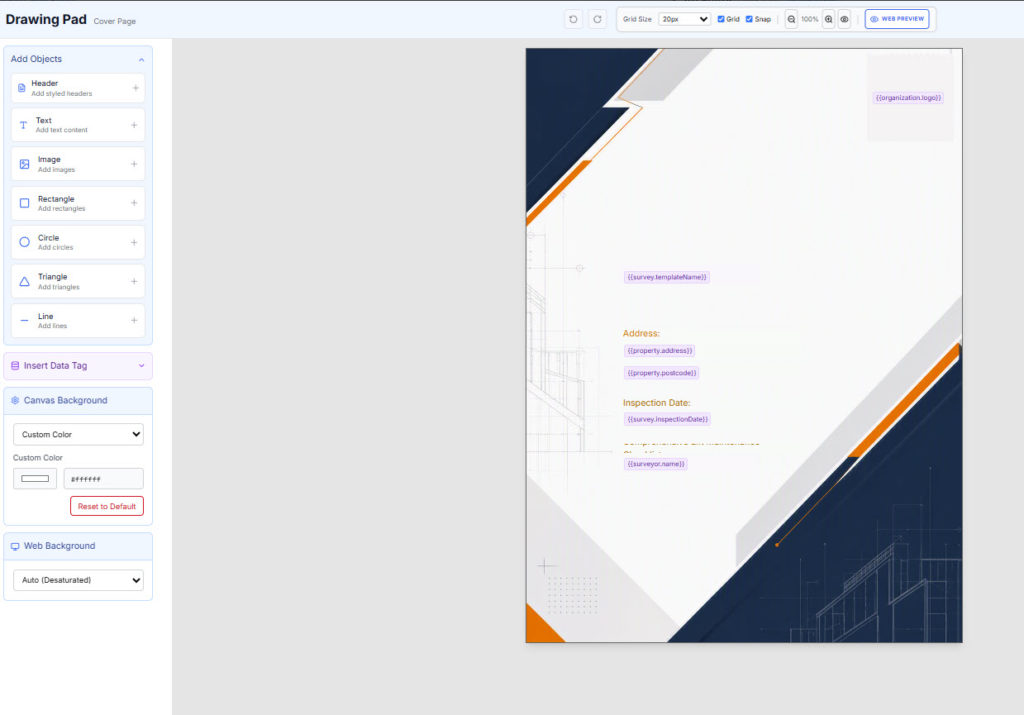
Use the drawing pad to create covers, section pages, headers, branded pages and other graphical report elements exactly the way you want them. You are not choosing from a fixed selection of predefined designs: you are using a genuine graphical design environment to create the page you need, with the freedom to build sophisticated layouts that match your brand and the way you want your information presented.
Put live survey responses exactly where they belong
Some professional reporting formats require specific information to appear within prescribed wording, sometimes in the middle of a sentence. Other times, you simply want your report to read naturally, rather than presenting every response as a separate field.
BrightChecker lets you select a response from your survey and insert it directly into your report text, wherever it belongs.
For example:
The findings set out in this report should be considered alongside the terms and conditions, which we sent to you on 14 October 2026, and the information provided to us before the inspection.
The date can be pulled directly from the relevant survey response and embedded naturally within the sentence.
Simply identify the survey section and question containing the response, create a custom tag and position it within your text. You remain in control of the wording and layout, and can move or edit the tag whenever you need to.
The advantage? You can accommodate specific reporting requirements, avoid building unnecessarily complicated report structures, and produce reports that read naturally to your clients — while keeping the information linked to your original survey responses.
Control Inspection Report Content
Content cards control the information presented in a particular part of the report.
A particular Content card can display selected inspection content, photographs or other captured information. It can also create an AI-generated summary, show a category index, or filter the survey template to include only the responses required for that particular section.
This allows different parts of the same report to present different information from the inspection.
Create a Table of Contents for Inspection Reports
Table of Contents cards generate the report’s contents page from the structure of the report.
They provide navigation to the report sections but do not control the underlying content or structure.
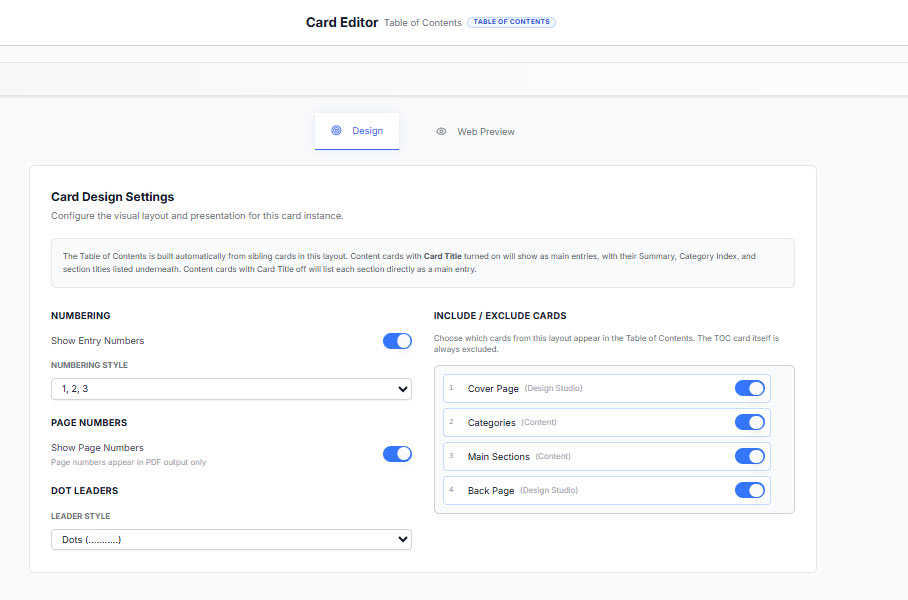
You can add, configure and reorder cards to create the report you need.
Design Inspection Reports Using Real Inspection Data
You don’t have to design your report layout completely blind.
You can attach a completed survey while you are designing the report, allowing you to see the layout populated with real inspection data as you work — both at individual card level and across the complete report layout. This lets you see exactly how the content will appear and make adjustments while you design, rather than waiting until the report has been generated.
Set the preferred report layout
Once you have created a report layout, you can attach it to a survey template and set it as the preferred layout for that template.
When you generate a report from a survey using that template, BrightChecker will use the preferred report layout to structure the report data and apply its design and look and feel.
Watch the video below to see how to:
- Attach a report layout to a template
- Detach a report layout
- Set a different layout as the preferred layout
Generate Professional Inspection Reports
BrightChecker creates a report instance each time a report is generated. Each instance has its own date and time, allowing you to distinguish between reports generated from the same survey at different points in time.
If you generate another report later, BrightChecker creates a new report instance rather than replacing the previous one.
Manage Inspection Report Versions
Report instances are visible on the Reports Hub.
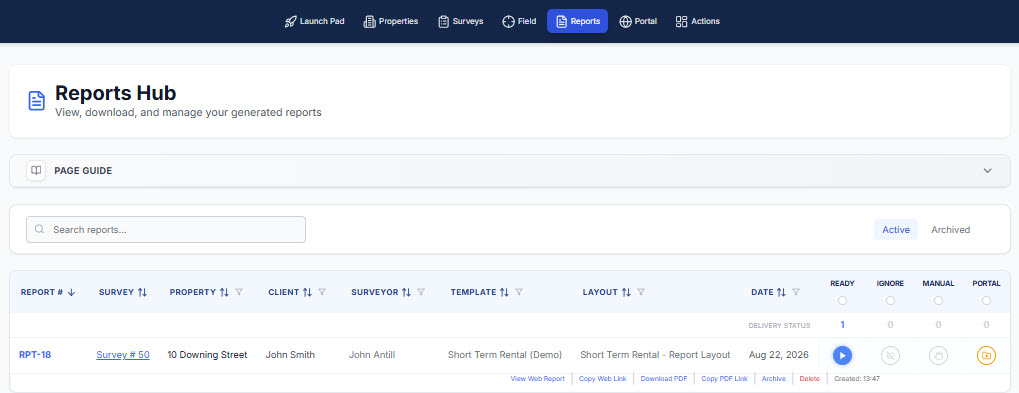
Everything relating to a report instance is displayed across two paired lines. The first line contains the key information about the survey and the report instance workflow. The second line contains the available reports and links to those reports.
From the Reports Hub you can view your interactive web reports and web report links, download PDF reports and copy PDF report links.
Update and Regenerate Inspection Reports
A report instance represents a particular generated version of the report.
If the underlying survey needs to be changed, it can be returned to Review. Once the changes have been made and the survey is approved again, you can generate another report, creating a new report instance rather than overwriting the previous one.
This gives you a clear record of reports generated from the same survey at different points in time.