
Resolve
BrightChecker Resolve takes what an inspection finds and helps you manage the work needed to put it right — from Issues and work orders through contractor communication, completion evidence and closure.
Most inspection software stops at the report. BrightChecker doesn’t stop when an inspection is submitted or a report is produced. Resolve connects inspection findings to the work needed to deal with them — from identifying issues and creating work orders through contractor communication, completion evidence and closure.
If you want the short version, start with the Overview Page.
6 key takeaways
- Business Rules can automatically create an Issue for your attention when defined inspection conditions are triggered.
- Issues show which element of the inspection triggered the business rule and provide the information needed to create the work required.
- One Issue can become one work order or several work orders, with each work order managed separately.
- Work orders can be allocated to contractors who do not need to become BrightChecker users.
- Contractor communication and completion evidence stay connected to the work order, providing a record of the work.
- Issue and Work Order tables show status and overdue items, helping organisations see what needs attention and where work has reached.
Business Rules
Let the inspection decide what needs attention.
Business rules can be applied across all survey templates, selected survey templates or a single survey template.
Rules can respond to text, categories and template responses.
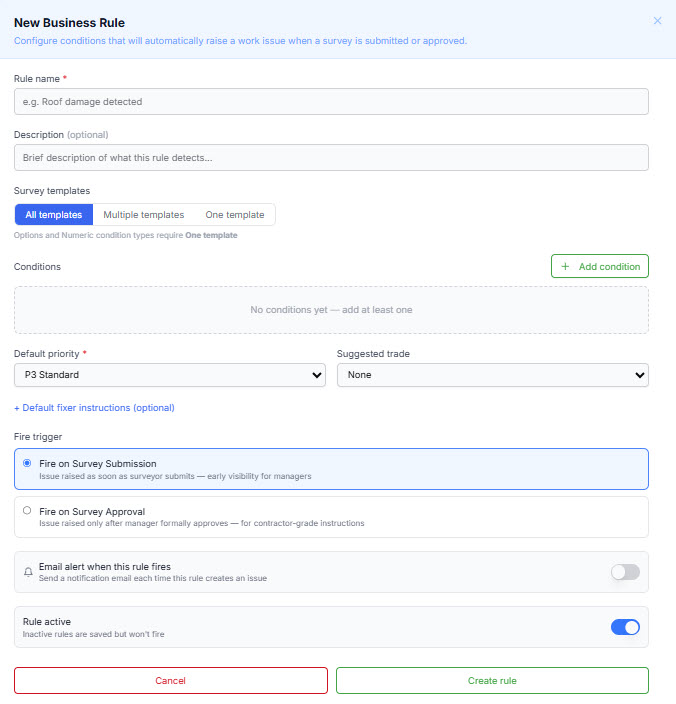
A rule can be set to run when an inspection is submitted or approved.
When an inspection triggers a business rule, BrightChecker creates an Issue for your attention
You can learn all about our ‘issue business rule’ capability in this video:
Issues & Work Orders
Turn inspection findings into work.
Issues provide the starting point for managing work identified through the inspection process.
Issues
Give the organisation something to act on.
An Issue shows which element of the inspection triggered the business rule and provides the information needed to manage the work.
The relevant inspection information and supporting evidence remain available from the Issue.
Issue Status Workspace
The Issue Workspace screen shows the progress of each Issue.
It also identifies overdue Issues, making it easy to see which ones require attention.
Work orders
An Issue can become one work order or several.
An Issue can be turned into one work order or several work orders.
Each work order is managed separately while remaining associated with the original Issue and inspection.
This allows the work to be organised according to what needs to be done.
Work order status
See where the work has reached.
The Work Order table shows status for each work order.
It also identifies overdue work orders, so the organisation can see which work needs attention.
Contractor allocation
Give the work to the people who need to do it.
Work orders are allocated to the contractors responsible for carrying out the work.
Contractors don’t need to become BrightChecker users.
The organisation manages the work in BrightChecker while contractors carry out the work.
Send the contractor what they need.
BrightChecker can use your email service to send an email to the contractor.
The email can include links to relevant inspection media as required.
The contractor gets the information and evidence needed to understand the work without having to become a BrightChecker user.
Contractor conversations
Keep the conversation with the work.
Track conversations with contractors against the relevant work order.
Questions, updates and responses remain recorded against the work.
Contractor Management
Create and maintain your contractor records
Add contractors to BrightChecker and keep their key details up to date. Contractor records can then be used when assigning work orders, giving you a clear view of who is responsible for each job.
Contractor Performance
See how contractors are delivering
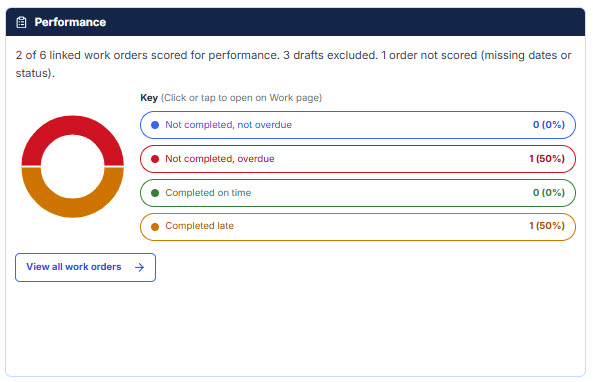
Track work orders by contractor with a clear view of completed work, overdue work and jobs still in progress.
Performance is shown through simple visual breakdowns, making it easier to identify outstanding work and monitor delivery against agreed timescales.
Trades
Trades provide a simple way to categorise the issues and type of work that may be required.
You can use the default list of trades, or add your own Trades.
They provide a useful starting point when deciding who or what type of resource may be needed, but they are not intended to be perscriptive.
For example, a contractor can have a primary trade while still being capable of carrying out other types of work.
Completion evidence
Show that the work is done.
Attach evidence of completion to the work order.
The organisation can then optionally review the evidence before the work is closed.
Remediation & closure
Follow the work through to completion.
Track the work through the Issue, work order, contractor communication and completion evidence.
When the work is complete and the evidence has been reviewed, the work order is closed.
The process provides a clear record from the original inspection through to completed work.
Great for
Property Managers · Facilities Teams · Maintenance Teams · Property Operations Teams · Inspection Organisations Responsible for Follow-up Work
Ready to put all of this to work?
Start your free month