
Okay. You wanted the capabilities list.
It’s a long one, so you’ve been warned.
This is the complete picture of what BrightChecker can do today.
Not a list of buzzwords. Not a list of things on a roadmap.
The actual system.
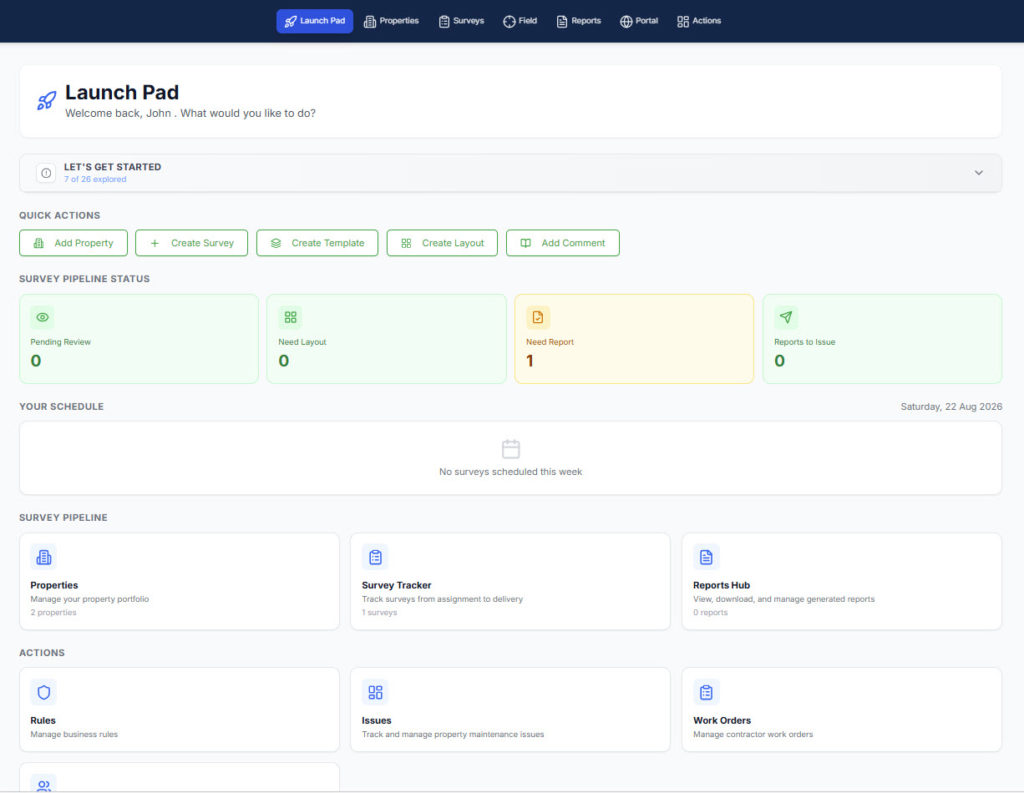
BrightChecker is property inspection software built around the whole inspection workflow — from creating and carrying out a survey to reviewing evidence, producing professional reports and turning findings into issues, work orders and completed remedial work.
Surveys & Inspections · Reviews · Scheduling · Data Sync & Recovery · Dashboards & Workspaces · Reports · Business Rules · Issues & Work Orders · Property · Users & Administration
Surveys & Inspections
Build the inspection you actually need.
BrightChecker lets you create property inspections around the way you work rather than forcing you into somebody else’s checklist.
Start with a survey template, adapt an existing one, or create your own from scratch.
Add the questions, categories, responses and evidence requirements you need, then reuse the survey whenever you carry out the same type of inspection.
And that means your inspection process can be built into the software rather than sitting in someone’s head.
Great for
Property Inspectors · Surveyors · Inventory Clerks · Inspection Companies · Property Managers · Property Operations Teams
Watch it being done
- How to create a survey from scratch
- How to create a survey with AI
- How to use a survey template
- How to adapt a survey to your own inspection process
- How to structure questions and responses
- How to load answers from a previous survey
- How to carry out a mobile property inspection
- How to capture inspection evidence
- How to work offline during an inspection
AI survey creation
Create structured survey templates with AI.
Describe what you want to inspect and BrightChecker can create a structured survey template for you.
Refine the questions, responses and structure before you use it.
The AI helps you build the inspection.
You decide what the finished survey contains.
That matters when consistency is important. The aim isn’t to replace a defined inspection process with a free-form AI guess. It is to help you create the structure you want to use.
And that means AI can save time at the survey-building stage while your actual inspections remain structured and repeatable.
Watch it being done
- How to create an inspection survey with AI
- How to describe the inspection you want AI to create
- How to review an AI-generated survey
- How to refine an AI-generated survey before using it
Survey templates
Build once. Reuse whenever you need it.
Create survey templates for the inspections you carry out regularly.
Use a template as it is, adapt it for a particular job, or create something completely different.
And that means you don’t have to rebuild your inspection process every time you need to use it.
Templates provide a consistent starting point for different types of property inspection and the processes your organisation carries out repeatedly.
Watch it being done
- How to create a survey template
- How to use a survey template
- How to adapt a survey template
- How to build a repeatable property inspection process
Custom surveys
Your questions. Your structure. Your evidence.
Build surveys around the information you actually need to collect.
Define the questions, responses, categories and evidence requirements that make sense for your inspection process.
And that means the information coming out of the inspection can be as consistent as the information going in.
Watch it being done
- How to build your own inspection
- How to structure inspection questions
- How to define inspection responses
- How to create an inspection around your own process
Mobile inspections
Carry out the inspection where the work happens.
Work through surveys on your phone or tablet.
Record responses, add notes and capture photographs and video as you inspect.
The information becomes part of the inspection as you work rather than leaving you with a collection of photographs and notes to sort out afterwards.
And that means the inspection isn’t followed by another inspection of your own photographs and notes when you get home.
Great for
Property Inspectors · Surveyors · Inventory Clerks · Mobile Inspection Teams
Watch it being done
- How to carry out an inspection on your phone
- How to carry out an inspection on a tablet
- How to capture answers and notes during an inspection
- How to capture photographs and video as you inspect
Offline inspections
Keep working when the signal doesn’t.
Property inspections don’t always happen somewhere with a reliable connection.
If connectivity disappears, you can continue working.
Your inspection information can synchronise when the connection returns.
And that means a poor signal doesn’t have to stop the inspection.
Watch it being done
- How to carry out an inspection offline
- How inspection data synchronises after connectivity returns
- What happens when an inspection loses connection
- How BrightChecker handles offline inspection data
Previous survey answers
Start with information you already have.
Load answers from a previous survey into a new inspection.
Review the information and update it where something has changed.
And that means you’re not asking someone to type the same information again simply because they’re carrying out another inspection at the same property.
This can be particularly useful for repeat property inspections where much of the underlying information remains the same but the current condition still needs to be checked.
Watch it being done
- How to load answers from a previous survey
- How to reuse previous inspection information
- How to update previous survey answers during a new inspection
Evidence capture
Keep the evidence with the inspection.
Capture answers, notes, photographs and video as part of the survey.
The evidence stays connected to the inspection rather than becoming a separate collection of files to identify later.
And that means the evidence has context.
The photograph isn’t simply a photograph.
It is part of the inspection.
The video isn’t simply a video.
It is part of the inspection.
The response isn’t simply a response.
It belongs to the survey structure that produced it.
Watch it being done
- How to capture inspection photographs
- How to capture inspection video
- How to add inspection notes
- How to keep evidence connected to inspection findings
Photo annotation
Make important details clear.
Annotate photographs while you are carrying out the inspection.
You can also add or refine annotations when you review the inspection.
And that means the evidence can explain the finding rather than simply show a photograph of it.
Watch it being done
- How to annotate a photograph during an inspection
- How to annotate a photograph during review
- How to use annotations to explain an inspection finding
GPS & location
Know where the inspection and evidence came from.
When location access is enabled, BrightChecker can record GPS and location information for photographs and video captured during the inspection.
A survey can also include a location question which can use available GPS information.
That location can then be used to create a map in the finished report.
And that means location can become part of the evidence and the finished report, rather than being something you have to add afterwards.
Watch it being done
- How to capture inspection location
- How GPS information is used in inspection evidence
- How to add a location to an inspection
- How to show inspection location on the final report
Reviews
Review the inspection before it moves on.
The inspection doesn’t have to be perfect before you leave the property.
Come back to the survey when you’re ready and review the responses, photographs, video and other evidence.
Make changes where needed.
Annotate or refine photographs.
Check that the evidence is there.
Then move the inspection on.
And that means review is available when it adds value without forcing the surveyor to spend unnecessary time at the property.
Great for
Surveyors · Inspection Managers · Team Leaders · Quality Reviewers
Watch it being done
- How to review a completed inspection
- How to check inspection responses
- How to review inspection photographs and video
- How to annotate photographs during review
- How to make changes before issuing a report
Scheduling
Organise the work before it starts.
Schedule inspections and allocate them to the surveyors who need to carry them out.
Keep scheduled work connected to the rest of the BrightChecker workflow.
And that means the inspection doesn’t start life as a diary entry in one place and become a completely separate piece of work somewhere else.
Great for
Inspection Companies · Property Managers · Operations Teams · Organisations with Multiple Surveyors
Watch it being done
- How to schedule an inspection
- How to allocate an inspection to a surveyor
- How to manage scheduled inspection work
Data Sync & Recovery
Keep inspection data moving.
BrightChecker synchronises inspection information as you work.
If connectivity disappears, information can remain on the device and synchronise when a connection returns.
If the device itself becomes unavailable, you can find the in-progress inspection and see the information that has already successfully synchronised with the system.
You can then continue with the information that has been recovered.
And that means offline working and device recovery are different problems — and BrightChecker has a route forward for both.
The important bit
Information that never reached the system cannot magically be recovered.
But information that has successfully synchronised isn’t unnecessarily trapped on the original device.
And that means losing a phone or breaking a tablet doesn’t automatically mean losing the inspection.
Great for
Mobile Inspection Teams · Surveyors Working Across Multiple Properties · Organisations Where Inspection Data Matters
Watch it being done
- How inspection data synchronises
- How to continue an inspection without connectivity
- What happens when connectivity returns
- How to recover an in-progress inspection
- What happens if an inspection device is lost
- How to continue an inspection using synchronised data
Dashboards & Workspaces
See where the work stands.
BrightChecker isn’t just the screen the surveyor uses while they’re standing in the property.
There are dedicated views for managing what happens around the inspection.
And that means the organisation can manage the work rather than simply collect completed surveys.
Watch it being done
- How to use the Organisation Dashboard
- How to track inspections
- How to manage reports
- How to manage issues
- How to manage work orders
- How to search, filter and sort inspection records
Organisation Dashboard
See what needs attention across the organisation.
The organisation dashboard gives you counts of things that need attention across BrightChecker.
Use them as the starting point for deciding what needs attention.
And that means you can see the workload before you start opening individual records.
Watch it being done
- How to use the organisation dashboard
- How to identify work needing attention
Survey Tracker
See where your surveys are.
The Survey Tracker gives you a working view of your surveys.
Find inspections, see where they are in the process and manage them from one place.
And that means you can manage an inspection operation rather than simply store completed surveys.
Watch it being done
- How to use the Survey Tracker
- How to find an inspection
- How to track inspection status
Reports View
See where your reports are.
The Reports View gives you a dedicated view of reporting work.
Find reports, see their status and manage what needs to happen next.
Watch it being done
- How to use the Reports View
- How to find a report
- How to track report status
Issues View
See the issues that need attention.
The Issues View brings issues created from inspections into one place.
Search, filter and sort the work so you can see what needs attention.
And that means a problem identified during an inspection doesn’t disappear into a PDF and get forgotten.
Watch it being done
- How to use the Issues View
- How to find an issue
- How to filter and sort issues
- How to move from an inspection finding to an issue
Work Order View
See the work being carried out.
The Work Order View gives you a dedicated view of work orders.
See what work has been raised, who it has been allocated to and where it stands.
And that means the system can follow the problem beyond the inspection itself.
Watch it being done
- How to use the Work Order View
- How to find a work order
- How to track work through to completion
Search, filtering & sorting
Find the work you need quickly.
Search across surveys, properties, issues and work orders.
Filter and sort by information including status, surveyor, property and date.
And that means you’re not relying on memory to find the job you need.
Watch it being done
- How to search inspection records
- How to filter surveys
- How to filter issues and work orders
- How to sort inspection records
- How to find a property or inspection quickly
Reports
Build reports your way.
BrightChecker separates the inspection from the design of the report.
Start with a report template, adapt an existing layout, or create a completely new report from scratch.
And that means the inspection structure and the customer-facing report don’t have to be the same thing.
You can capture structured inspection information and then decide how that information should be presented professionally.
Great for
Property Inspectors · Surveyors · Inspection Businesses · Property Managers · Teams Producing Reports for Clients
Watch it being done
- How to create a report template
- How to build a professional inspection report
- How to use the Report Builder
- How to use Design Cards
- How to use Data Cards
- How to add a Table of Contents
- How to generate a PDF report
- How to create a white-label report
- How to create an interactive report
Report templates
Create reports you can reuse.
Build a report layout once and reuse it for inspections that need the same presentation.
Adapt it when the report needs to be different.
And that means your reporting standard can become part of the system.
Watch it being done
- How to create a report template
- How to reuse a report template
- How to adapt a report template
Report Builder
Build your report from building blocks.
Choose the elements you need and arrange them in the order you want.
You control the structure rather than being locked into a fixed report.
Watch it being done
- How to build a report
- How to arrange report sections
- How to preview a report
- How to refine a report layout
Design Cards
Control how the report looks.
Use Design Cards to control presentation and create the layout you want.
Watch it being done
- How to use Design Cards
- How to control report presentation
- How to create a consistent report layout
Data Cards
Put the inspection information into the report.
Use Data Cards to add inspection information.
Apply filters and include tag summaries so the report contains the information relevant to the job.
Watch it being done
- How to use Data Cards
- How to filter report information
- How to use tag summaries in reports
Table of Contents Cards
Make larger reports easier to navigate.
Add Table of Contents Cards to organise longer reports and help readers find what they need.
Watch it being done
- How to add a Table of Contents
- How to structure a longer inspection report
Any card. Any order.
Add the elements you need.
Move them where you want them.
Preview the result.
Change it.
Preview it again.
Build the report until the layout is right.
And that means you’re building the report rather than accepting whatever format the software happens to give you.
Watch it being done
- How to arrange report cards
- How to build a report layout
- How to preview and refine a report
Report Generator
Bring the inspection and report together.
The Report Generator brings inspection information and the report structure together to create the finished report.
And that means the evidence captured during the inspection can become the content of a professional report without rebuilding the inspection afterwards.
Watch it being done
- How to generate an inspection report
- How inspection data becomes a finished report
- How to turn a completed inspection into a report
Interactive web reports
Deliver reports online.
Give clients professional interactive reports that can be viewed through the web.
Watch it being done
- How to create an interactive report
- How to give clients access to reports
PDF reports
Create reports in PDF format.
Generate finished PDF reports when a downloadable or printable version is required.
Watch it being done
- How to generate a PDF inspection report
- How to prepare a report for download or printing
White-label reports
Make the report yours.
Deliver reports using your own branding.
And that means the customer sees your report, not a software vendor’s report.
Watch it being done
- How to create a white-label inspection report
- How to use your own branding in reports
Client Portal
Give clients one place to access their reports.
Clients can view their reports through the BrightChecker Client Portal.
And that means you can give clients access to their reports without turning them into users of your internal inspection system.
Watch it being done
- How to give a client access to a report
- How clients view reports in the Client Portal
Business Rules
Let the inspection decide what needs attention.
Business rules can be applied across all survey templates, selected survey templates or individual surveys.
Rules can respond to text, categories and template responses.
When a rule is triggered, BrightChecker creates an issue for the organisation’s attention.
You can define which element of the inspection triggered the issue, which media should be included and what the issue should say.
And that means the inspection can do more than record a problem. It can start the process of dealing with it.
Great for
Property Management Teams · Inspection Companies · Facilities Teams · Operations Teams
Watch it being done
- How to create a business rule
- How to apply a rule to survey templates
- How to trigger an issue from a response
- How to use text, categories and template responses in rules
- How to include inspection media in an issue
- How to define what an issue should say
Issues & Work Orders
Turn findings into work.
This is where BrightChecker moves beyond inspection and reporting.
Finding a problem is only the beginning.
The real question is: what happens next?
Watch it being done
- How to create an issue from an inspection finding
- How to review an issue
- How to split an issue into work orders
- How to allocate a work order
- How to communicate with a contractor
- How to provide inspection evidence to a contractor
- How to capture completion evidence
- How to close a work order
Issues
Give the organisation something to act on.
When a business rule identifies something that needs attention, BrightChecker can create an issue.
The organisation can review the issue and decide what work needs to happen.
And that means a finding has an owner and a next step rather than simply becoming another paragraph in a report.
Watch it being done
- How to review an inspection issue
- How to identify the evidence behind an issue
- How to decide what work needs to happen
Multiple work orders
One issue can become several pieces of work.
An issue can be split into one or more work orders.
A single finding can therefore lead to different pieces of work being managed separately while remaining connected to the original issue and inspection.
And that means one inspection finding doesn’t have to become one giant, unmanageable job.
Watch it being done
- How to split an issue into work orders
- How to create multiple work orders from one finding
- How to manage separate remedial tasks
Contractor allocation
Give the work to the people who need to do it.
Allocate work orders to the contractors responsible for carrying out the work.
Contractors don’t need to become BrightChecker users.
And that means you get the operational workflow without creating another layer of user administration.
Watch it being done
- How to allocate a work order to a contractor
- How to provide contractors with the information they need
- How contractors receive inspection evidence
Automated contractor emails
Send the contractor what they need.
BrightChecker can use your email service to send an automated email to the contractor.
The email can include links to relevant inspection media as required.
And that means the contractor can see the evidence behind the work without having to become part of your inspection software.
Watch it being done
- How to send work to a contractor
- How contractor emails work
- How to provide inspection media to contractors
Contractor conversations
Keep the conversation with the work.
Track conversations with contractors against the relevant work order.
Questions, updates and responses remain connected to the work.
And that means the conversation about the repair doesn’t become a separate email trail that somebody has to reconstruct later.
Watch it being done
- How to track contractor conversations
- How to keep contractor communication with a work order
- How to manage contractor updates
Completion evidence
Show that the work is done.
Attach evidence of completion to the work order.
The organisation can review the evidence before the work is closed.
And that means completion isn’t simply somebody saying “done”. There’s evidence attached to the work.
Watch it being done
- How to add completion evidence
- How to review contractor completion evidence
- How to verify completed work
Remediation & closure
Follow the work through to completion.
Track the work from the original finding through the work order, contractor communication and completion evidence.
When the work is complete, close it.
And that means the inspection can end with a resolved problem rather than an unresolved recommendation.
Great for
Property Managers · Facilities Teams · Maintenance Teams · Property Operations Teams · Inspection Organisations Responsible for Follow-up Work
Watch it being done
- How to follow an issue through to completion
- How to close a completed work order
- How to manage inspection findings through remediation
Property
Everything connected to the property.
The Property Command Centre brings the information associated with a property together.
See property information, maps, previous surveys, reports, photographs and work that needs attention.
From the property, you can start a survey, find previous surveys, open reports and see what needs doing.
And that means the property isn’t just an address attached to an inspection. It’s the context that connects the history and the work.
Great for
Property Managers · Property Operations Teams · Inspection Companies Managing Repeat Visits · Organisations Managing Multiple Properties
Watch it being done
- How to use the Property Command Centre
- How to find a property’s inspection history
- How to find previous surveys and reports
- How to see issues and work associated with a property
- How to use property maps
Property location
Give the surveyor location context.
Property mapping helps show where the survey is taking place and provides location information for the work.
And that means the surveyor can use the property location as part of the working context rather than treating it as an isolated address.
Watch it being done
- How to find a property on the map
- How to use property location during an inspection
Location in reports
Put the location into the finished report.
When a survey captures location information, BrightChecker can use it to create a map in the final report.
And that means the report can show the reader where the inspection relates to geographically.
Watch it being done
- How to add inspection location to a report
- How the inspection map appears in the final report
Users & Administration
Multiple users without a maze of roles.
BrightChecker keeps organisation roles deliberately simple.
Surveyor
Carry out inspections and manage the work assigned to you.
Organisation Admin
Manage the organisation, users and wider system activity.
And that means you can have multiple people working in the system without turning permissions into a project of their own.
The model is deliberately straightforward.
Surveyors and organisation administrators use BrightChecker.
Clients can access their reports through the Client Portal.
Contractors receive their work through email and links rather than needing BrightChecker accounts.
And that means the people who need to run the system are in the system — while everyone else gets what they need without adding unnecessary users, roles and administration.
Watch it being done
- How to invite a new user
- How to manage surveyors
- How to manage organisation administrators
- How to manage your inspection team
Built for the people doing the work
BrightChecker is particularly useful for:
Property Inspectors
Carry out structured inspections, capture evidence on site and produce professional reports.
Surveyors
Work through repeatable inspection processes while retaining the flexibility to adapt surveys when the job requires it.
Inventory Clerks
Capture consistent property information, photographs, notes and evidence as part of the inspection.
Property Managers
See properties, inspections, reports, issues and work orders in one connected workflow.
Inspection Companies
Standardise inspection processes, manage multiple surveyors and deliver consistent professional reports.
Property Operations Teams
Turn inspection findings into actionable issues and work orders and track the work through to completion.
Facilities & Maintenance Teams
Use inspection findings to identify work that needs doing, allocate it and capture evidence of completion.
And that means BrightChecker isn’t simply for the person carrying the phone.
It can connect the people who inspect, review, report and act on what the inspection finds.
The whole thing
Inspect. Review. Report. Resolve.
This is the important bit.
BrightChecker connects the work from the first inspection through to the finished job.
Inspect the property and capture the evidence.
Review what has been recorded.
Report the findings professionally.
Resolve anything that needs action.
A finding can trigger a business rule.
A business rule can create an issue.
An issue can become one or more work orders.
Work orders can be allocated to contractors.
Contractors receive the relevant information and media.
Conversations stay connected to the work.
Completion evidence comes back.
The work is closed.
And that means…
The inspection isn’t the end of the process.
It’s the beginning of everything that needs to happen next.
That’s the difference between software that helps you record an inspection and software that helps you run the work that comes from it.
One inspection. Everything that follows.
Flexibility by Design.
Ready to put all of this to work?
Start your free month.
Frequently asked questions
What is BrightChecker?
BrightChecker is property inspection software that connects inspections, evidence, reviews, professional reporting, issues, work orders, contractor communication and remediation in one workflow.
What types of property inspection can BrightChecker support?
BrightChecker uses configurable survey templates, so organisations can create and adapt inspections around their own processes rather than being restricted to a single fixed inspection type.
Can BrightChecker create inspection surveys using AI?
Yes. BrightChecker can create structured survey templates from a description of what you want to inspect. You can then refine the survey before using it.
Can BrightChecker work offline?
Yes. Inspectors can continue working when connectivity is unavailable. Information can synchronise when the connection returns.
What happens if an inspection device is lost?
Information that has successfully synchronised with BrightChecker can still be accessed through the in-progress inspection. This means the available synchronised inspection data is not automatically lost because the original device is unavailable.
Can BrightChecker capture photographs and video?
Yes. Photographs and video can be captured as part of an inspection, keeping the evidence connected to the survey.
Can photographs be annotated?
Yes. Photographs can be annotated during an inspection and annotations can also be added or refined during review.
Can BrightChecker use GPS information?
Yes. When location access is enabled, GPS and location information can be recorded for photographs and video. Survey location information can also be captured and used to create a map in the final report.
Can BrightChecker use previous inspection answers?
Yes. Answers from a previous survey can be loaded into a new inspection and then reviewed and updated.
Can BrightChecker create professional inspection reports?
Yes. BrightChecker includes report templates, a Report Builder, Design Cards, Data Cards, Table of Contents Cards and the Report Generator, allowing organisations to create structured professional reports.
Can BrightChecker create PDF reports?
Yes. Finished reports can be generated as PDFs.
Can BrightChecker create interactive reports?
Yes. BrightChecker can produce interactive web reports.
Can reports be white-labelled?
Yes. Reports can use your own branding.
Can clients access their reports online?
Yes. Clients can view reports made available to them through the Client Portal.
Can inspection findings automatically create issues?
Yes. Business rules can respond to text, categories and template responses and create issues when defined conditions are met.
Can one issue create multiple work orders?
Yes. An issue can be split into one or more work orders.
Do contractors need BrightChecker accounts?
No. Contractors can receive work through automated email and links to relevant information and media.
Can contractor conversations be tracked?
Yes. Conversations with contractors can be tracked against the relevant work order.
Can completion evidence be recorded?
Yes. Evidence of completion can be attached to the work order before it is closed.
Does BrightChecker have dashboards?
Yes. BrightChecker includes an organisation dashboard plus dedicated Survey Tracker, Reports, Issues and Work Order views.
Can users search, filter and sort their work?
Yes. Users can search and use filters and sorting across surveys, properties, issues and work orders, including information such as status, surveyor, property and date.
How many user roles does BrightChecker have?
BrightChecker currently keeps the internal user model deliberately simple, with Surveyor and Organisation Admin roles.
Ready to put all of this to work?
Start your free month