

A property inspection template gives you a repeatable way of carrying out an inspection.
It defines the sections, questions, responses and evidence you want to capture. It can guide the surveyor through the property, help keep inspections consistent and provide the information that eventually becomes the report.
The important thing is that you aren’t locked into somebody else’s idea of how an inspection should work.
Build the structure once. Use it repeatedly. Change it when you need to.
Start with a template
You don’t necessarily have to start with a blank screen.
You can:
- Use a BrightChecker template
- Use a template your organisation has already created
- Build one yourself
- Ask BrightChecker AI to create a starting point from a brief describing what you want to inspect
If you have an existing manual inspection report, that can be a good starting point too.
You can work through the report and recreate the sections, questions and decisions you already make when carrying out the inspection.
Or start with an inspection you’ve done before and build the process from memory.
With BrightChecker, if you know you need four text questions and a signature, you can create those blank questions in seconds and go back and fill in the detail.
You don’t have to have every question worked out before you start building.
Structure the inspection around the property
Breaking the survey into logical sections makes it easier to work through.
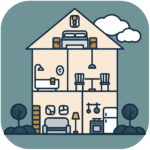
Those sections can follow the physical journey around the property.
For example:
External → Entrance → Ground Floor → First Floor → Roof Space → Outbuildings
The surveyor works through each section as they move around the building.
It also gives them a sense that things are being ticked off.
External ✓
Ground Floor ✓
First Floor — in progress
Roof Space — to do
That might sound like a small thing, but when you’re halfway through a large inspection, knowing where you are and what is left to do is useful.
And you decide how your sections work.
They can follow the physical route around the property, the way your business thinks about the inspection, or the structure you eventually want in the report.
Build the questions and elements
Within each section, add the things that need to be inspected.
You can define:
- Section names
- Question names
- Surveyor hints
- Additional explanatory information
- Optional questions
- Compulsory questions
- Conditional questions
You can build the basic structure first and come back to the detail later.
That can be useful when you’re converting an existing paper or Word-based inspection into a proper digital template.
Give surveyors hints as they work
Surveyor hints give you a way to guide the person carrying out the inspection.
They can explain what to look for, remind the surveyor how something should be recorded, or encourage a standard answer.
For example:
Check the condition of the frame, closer and hinges. Record any damage or defects.
Or:
Use “Good” where there is only minor cosmetic wear.
The guidance is there at the point where the question is being answered.
It can also help you create a consistent approach across all your templates.
Use the same style of hints, question wording and response options across different inspections and your surveyors won’t have to work out how every template works.
If “Good”, “Fair” and “Poor” mean the same thing across your inspections, use those terms consistently.
If you normally ask a particular type of question in a particular way, keep doing it.
The result is less variation between surveyors and less time spent working out what a question means.
Build consistency into the templates so the surveyor has less to think about.
Use conditional questions when they make sense
Not every question needs to appear on every inspection.
For example:
Does the fire door have a vision panel?
If the answer is yes, you can show the questions relating to the vision panel.
If the answer is no, those questions don’t need to appear.
You can use the same approach for other things that only apply in particular circumstances.
That means one template can deal with different types of property without making the surveyor work through a long list of irrelevant questions.
Choose how each question is answered
Different things need different answers.
BrightChecker supports:
- Text
- Options
- Scale
- Stars
- Measurement
- Date
- Signature
Option questions can also be presented in different styles, including checklist and radio-button formats.
You choose the response type that suits the question.
And you can standardise those choices across your templates.
If a particular type of finding is always recorded using the same options, use the same options.
That means surveyors don’t have to learn a different set of responses every time they open a different inspection.
Explain what the answer means
This is an easy thing to forget when you’re building a template.
The surveyor might know exactly what a score means. The person reading the report later might not.
For example, suppose you use a scale from 1 to 10.
You can explain it in the template:
Condition: 1–10
1 = Very poor
10 = Very good
Then somebody reading the report who sees:
Condition: 7
knows what 7 means.
The same applies to any response where the meaning isn’t obvious.
Don’t just capture the answer. Explain what the answer means.
Capture the evidence against the thing you’re inspecting
Photographs, video and notes are often a big part of a property inspection.
With BrightChecker, evidence can be captured against the individual question or element.
You can add:
- Photographs
- Video
- Uploaded images
- Notes
- Categories
So if you’re inspecting the roof, the photographs and notes relating to that finding stay with the roof question.
You aren’t left at the end of the inspection trying to work out which photograph belongs to which finding.
Use categories to classify findings
Categories can be added to questions during an inspection.
You can use BrightChecker’s predefined categories or create your own.
For example:
- Priority 1
- Priority 2
- Priority 3
- Information
Or create categories specific to your organisation.
Categories can also become part of the finished report.
For example, you can create a category index so that a report reader can select a particular category and go directly to the relevant findings.
So the categorisation you do during the inspection isn’t lost when the survey is turned into a report.
Preview the template
You can preview individual questions as you build them.
You can also preview the complete template.
This is worth doing before you use it for a real inspection.
You might spot a question that isn’t clear.
You might realise two questions should really be one.
You might notice that the order doesn’t make sense.
Or you might discover you’ve forgotten something.
Change it and preview it again.
Use the template before you really need it
Don’t wait until you’re standing outside a property with a client expecting a report to find out whether your new template works.
Run it first.
Use it yourself.
Give it to one of your surveyors.
Walk through a property with it.
See what gets missed.
See which questions are awkward.
See whether the surveyor needs more guidance.
Then change the template.
This is particularly useful when you’re building a template from an old manual inspection. Things that looked perfectly sensible on paper don’t always work as well when you’re actually walking around a building with a phone or tablet.
Fix those things before the template becomes part of your everyday workflow.
And don’t worry about getting everything perfect first time.
You’ll probably find other things to change once you’ve used it a few times.
That’s fine.
See what the finished report looks like
The survey isn’t the end product.
The report is.
So once you’ve tested the inspection, run it through a report layout as well.
That lets you see what the customer will actually receive.
You might find that something you’ve captured isn’t useful in the report.
You might realise that an answer needs more explanation.
You might want the surveyor’s summary near the beginning.
You might decide that the order that works well for the surveyor isn’t the best order for the person reading the report.
Change it and run it again.
Build the inspection with the finished report in mind.
Decide what is compulsory
Some questions need an answer every time.
Others don’t.
You decide which is which.
If a compulsory question hasn’t been completed when the surveyor tries to submit the survey, BrightChecker identifies it.
The surveyor can go back and complete it.
But there may be a legitimate reason why something couldn’t be answered, so BrightChecker doesn’t necessarily make that decision for you.
It can tell you what’s missing.
You decide what to do about it.
Reuse information from previous inspections
Repeat inspections don’t always need to start with a blank survey.
Where the template and property have been used before, BrightChecker can load previous:
- Responses
- Notes
- Categories
into the new survey.
The surveyor can use that information as a starting point or simply refer to it when needed.
You decide how much previous information you want to carry forward.
Build it once. Improve it as you use it.
A good template isn’t something you create once and then never touch again.
Your inspections change.
Your customers change.
Your business changes.
And you learn things from actually using the template.
So change it.
Add a question.
Remove one.
Change the order.
Change the surveyor hint.
Change the response options.
Change the report.
Run it again.
That’s the useful bit about having your own templates. You aren’t stuck with the first version you created.
Standardisation without being locked into a standard
You want your surveyors to follow a consistent process.
You want information captured consistently.
You want reports to make sense to the people reading them.
But you may not want to be forced into an inspection designed by somebody else.
With BrightChecker, you decide what the template contains, how the surveyor works through it, what gets recorded and how that information is eventually presented.
The structure is repeatable. The way you use it is yours.
Property inspection templates, your way
BrightChecker lets you create, test, reuse and adapt property inspection templates.
Start with one of ours.
Copy an existing inspection.
Build your own.
Use AI to get you started.
Test it before you need it.
Run it through a report layout.
Fix what doesn’t work.
Then use it again and again.
And when your business changes, change the template.
That’s Flexibility by Design.
Start your free month →