
Organisation Management
Manage the things that make BrightChecker yours
This page explains the organisation-level settings in BrightChecker — from your company details, logo and branding to managing users, subscriptions and recovering survey data when something goes wrong. It also explains BrightChecker’s deliberately simple two-role approach, so you can manage who has access without having to navigate a complicated permissions system.
Organisation and branding
Your organisation settings provide the core details that define your company in BrightChecker.
Add your organisation details, logo and preferred branding colours in the organisation settings. These provide the defaults used across your BrightChecker account.
You can also add the public-facing contact details used in your reports, such as the company name, address, telephone number, email address and website.
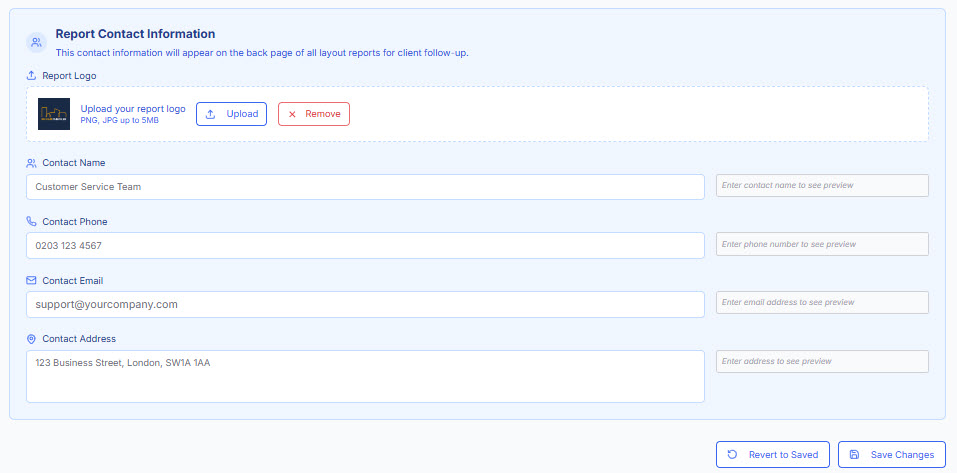
When you use a checklist from the BrightChecker library, your organisation branding can automatically be applied to the associated report.
Your branding colours are also used as the preferred colours for Design Studio cards, although you can select any colour when designing a report.
Users and subscription
As your organisation grows, you can add users and manage who has access to BrightChecker.
You can also modify your subscription to accommodate changes in the number of people using the system.
The aim is to keep this straightforward — add the people you need and adjust your subscription when your requirements change.
Simple role profiles
BrightChecker deliberately keeps user roles simple.
There are two role profiles:
Organisation Admin
Access to the Organisation area and its settings.
Survey
Access to the inspection and survey functions.
We don’t make you choose between a long list of specialist profiles such as office manager, template builder, report designer and surveyor.
The idea is simple: people shouldn’t have to understand a complicated permissions model just to use BrightChecker.
Two roles. Simple to understand. Easy to manage.
Recover a survey when something goes wrong
Things don’t always go according to plan.
If a device is lost or damaged while a survey is still being carried out, any information that has already been synchronised to BrightChecker may still be recoverable.
You can see what has successfully synced from the survey and decide whether to bring that captured information through as a submitted survey.
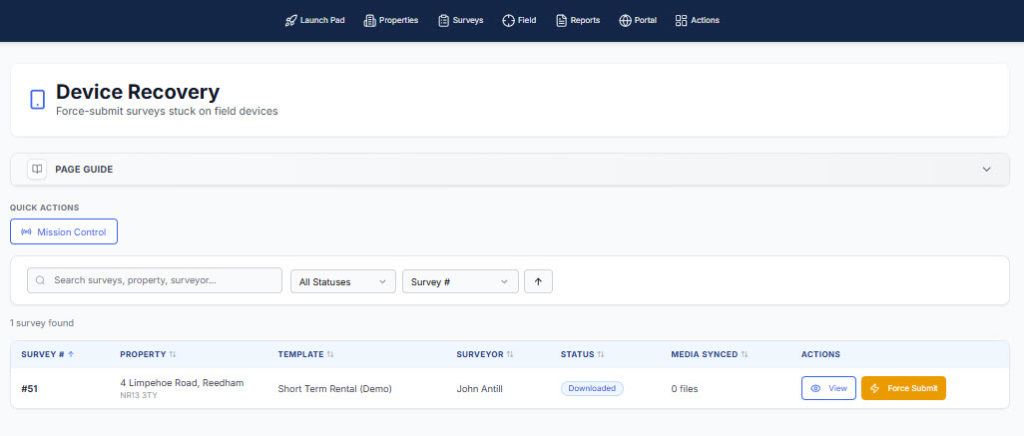
It won’t necessarily recover everything that was on the device, but it can allow you to salvage the work that has already reached BrightChecker rather than losing the entire survey.
BrightChecker also provides further guidance on recovering surveys in this situation.
Keep organisation management simple
The Organisation area is deliberately small.
It gives you the controls you need to manage your organisation, users and subscription without turning BrightChecker into an administration exercise.
Ready to put all of this to work?
Start your free month